Free · No ads · Early version

View photos. Pick the keepers.

Lightable is a fast, lightweight photo viewer for Windows 10 and 11. Built in native C++ with an installer around 2.3 MB, it’s designed to feel responsive on older PCs too. Compare photos side by side, rate them and add color labels as you go.

Version 0.4.8 · about 2.3 MB · Windows 10 and 11 · Updates automatically

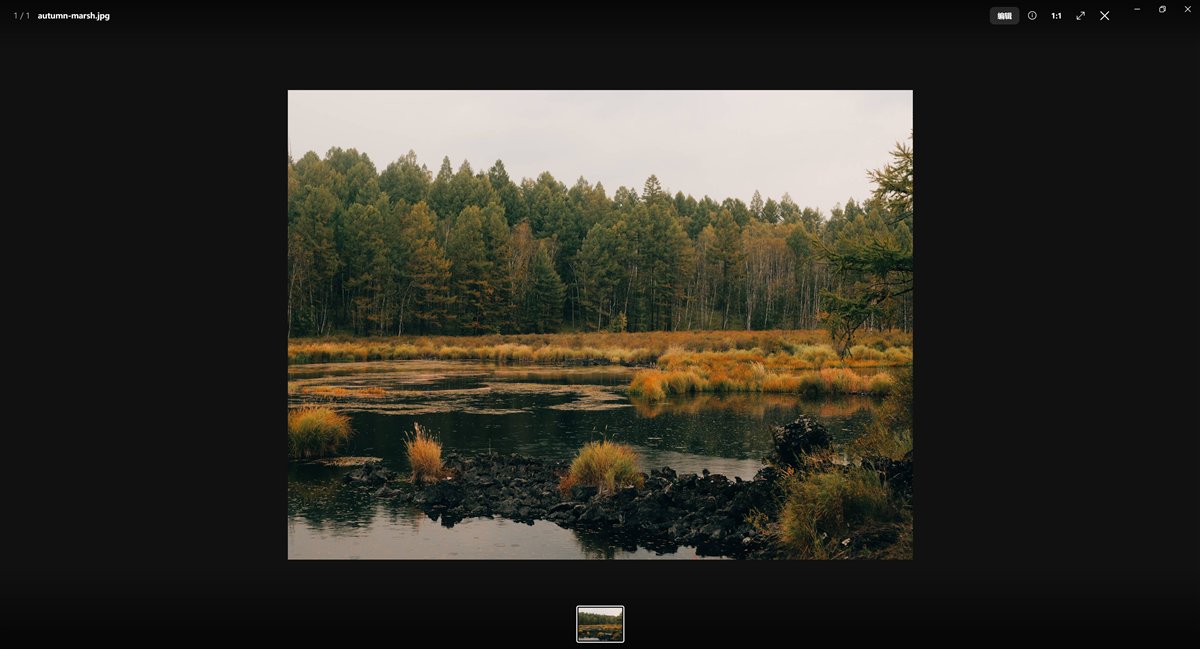
Lightable showing an autumn wetland landscape full screen, with the filmstrip below
Lightable as it looks on screen. Photo by the author.

Why it exists

A photographer’s own photo viewer.

I am a photographer, and every day I go through hundreds of photos to find the few worth keeping. On Windows, some viewers make you wait for each photo to open; others come with ads and pop-ups. Professional software can do the job, but it feels heavy when all you want is to look through a shoot.

So I built Lightable, first of all for my own daily viewing and editing. Many details come straight from that: the histogram stays pinned to the top of the edit panel, so it is always in view as you adjust; after zooming to 1:1, the next photo opens at the same spot, so focus across a burst is easy to compare; and portrait photos are shown whole in slideshows, never cropped into a landscape frame.

It is still early, and it keeps improving from real, everyday use. If you work with photos too, I hope it helps you as well.

Speed

Quick to open, quick to page.

Photos are decoded at screen size and the next few are prepared in advance, so the next one is there when you press the arrow key. RAW files open from the preview the camera embeds in them, so they open quickly too.

Works with common image formats (JPG, PNG, HEIC, WebP, TIFF and more) and RAW files from major cameras (Canon, Nikon, Sony, Panasonic, Fujifilm, DNG and more).

Slideshow

Play a set of photos full screen.

Right-click photos, an album or a folder in the library and choose Play Slideshow to watch full screen. Each photo stays for about 6 seconds, joined by a 1.5-second crossfade, with a slow zoom and pan. Landscape photos fill the screen; portrait photos are shown whole, never cropped. Space pauses, ← → move between photos.

If NetEase Cloud Music or QQ Music is open, the music starts with the slideshow and pauses when you pause it.

Culling

Rate, label, and compare photos side by side.

1–5 to rate, 6–9 for color labels, X to reject. Press C to compare side by side: your pick stays on the left while candidates change on the right, zooming and panning together. Filter by rating to see only the keepers.

Editing

Color and crop, with originals untouched.

Light, color, black and white, white balance, curves, sharpening and vignette, plus nine filters, crop and straighten. Every adjustment is saved as a recipe and can be reverted at any time. The histogram stays at the top of the panel with ISO, focal length, aperture and shutter speed beneath it; while cropping, scroll to zoom the photo.

Originals

Your originals stay untouched.

Ratings and labels are written to an .xmp file next to each photo, which Lightroom reads directly. If Lightroom already wrote one, only the rating and label change; your develop settings stay as they are.

Detail

Zoom in, keep paging.

Press Z or double-click to view at 1:1. The next photo opens at the same zoom and position, so you can check focus across a burst. A RAW and JPG with the same name show as one photo.

Export

Export your picks in one go.

Select several photos in the library and export them together: edited photos with their edits, the rest as they are. You choose the folder first; duplicate names get a new name, and existing files are never overwritten.

Photo info

The full shooting settings.

Beyond camera, lens, ISO, aperture and shutter speed, it lists exposure compensation, exposure mode, metering and white balance, so you can see how each shot was made.

Languages

Simplified Chinese, Traditional Chinese, English.

The interface follows your Windows language: Simplified Chinese systems get Simplified, Taiwan, Hong Kong, Macau and Traditional Chinese systems get Traditional, and everything else gets English.

Quiet

No ads, no interruptions.

No account, no notifications. Deleted photos go to the Recycle Bin and Ctrl+Z brings them back. New versions download in the background and install when you close the app.

Everyday keys

Next / previous→ ←
1:1 / fit to screenZ
Rate / clear rating1–5 / 0
Red, yellow, green, blue label6 7 8 9
Reject / unrejectX / U
Compare side by sideC
Shooting infoI
Favorite.
Full screenF
SlideshowCtrl Enter
Undo deleteCtrl Z

Requirements and installation

  • Windows 10 or Windows 11
  • Formats: JPG, PNG, HEIC, WebP, TIFF and other common images, plus RAW from Canon, Nikon, Sony, Panasonic, Fujifilm, DNG and more (shown from the embedded preview)
  • Installs for the current account only, no administrator rights needed
  • Installer about 2.3 MB
  • Can be set as the default photo viewer; Windows asks you to confirm each format
  • Uninstall: Settings → Apps → Installed apps → Lightable

Seeing “Windows protected your PC” on first install?

Click “More info”, then “Run anyway”. Windows shows this for new programs without a paid signature. Installation needs no account and bundles nothing else.

Version history

Current version 0.4.8

This is an early version and updates often. Installed copies update themselves to the latest release.

Buy me a coffee

Thank you. Support is entirely optional and changes nothing in the apps.

In WeChat, press and hold the code to scan it. In other browsers, save the image and scan it with WeChat.