 Ruxget
Free · No ads · Never in your way
Ruxget Desktop.
Large files that finish.
The Windows companion of the Ruxget extension. Downloads you hand over from Chrome run with several connections, resume where they stopped and keep going after the browser closes. Cloud drives and BT work too.
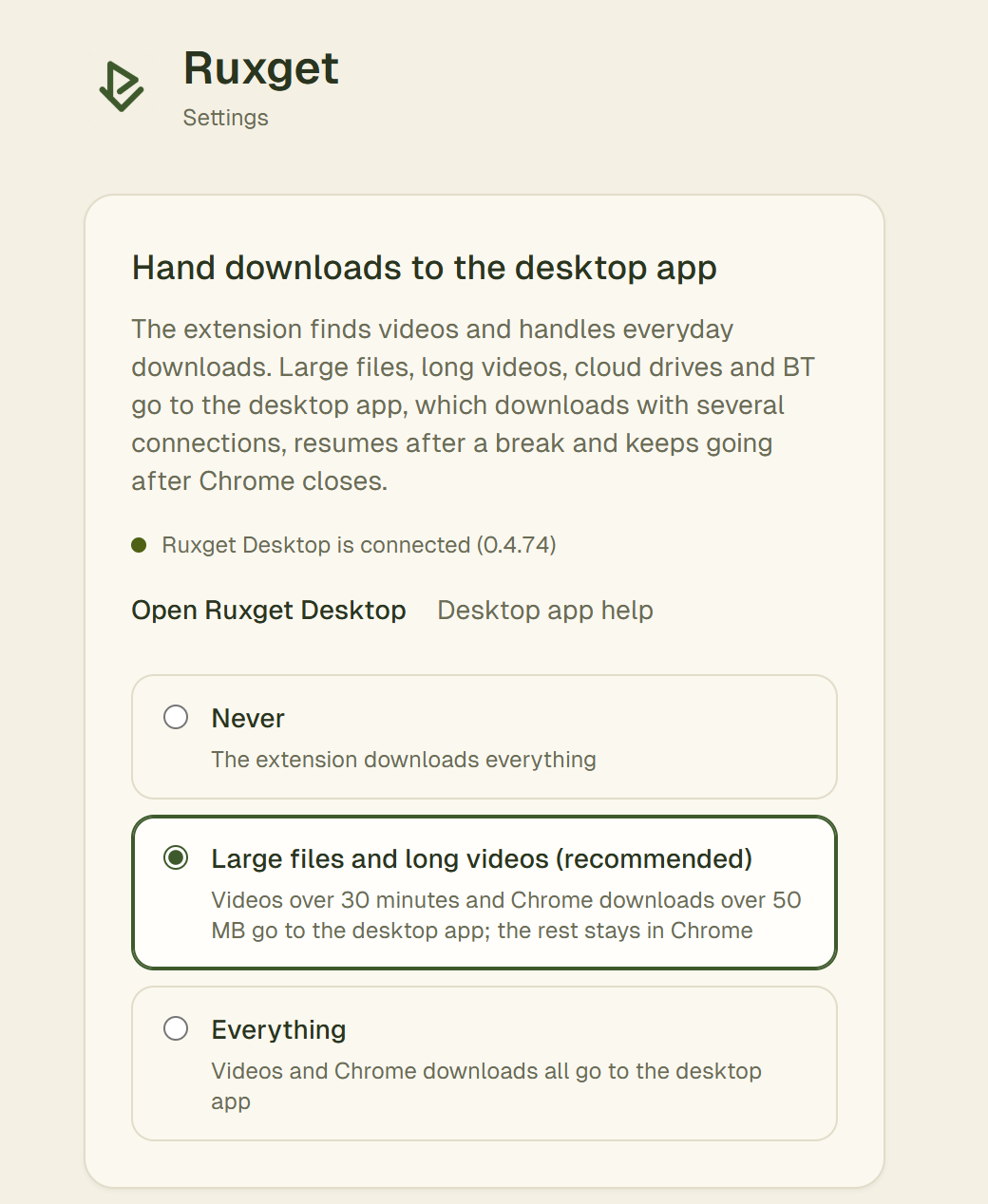
Chrome extension settings · actual interface
Pause, resume, keep going
Several connections per file. A download that stops — network drop, sleep, restart — continues from where it was instead of starting over, even after Chrome is closed.
Works with the extension
In the extension's settings, choose which downloads go to the app: never (the default), large files and long videos, or everything. Progress shows in the extension too, and both save to the same folder.
Cloud drives and BT
On supported cloud-drive pages, turn on a “Ruxget download” button for the files you pick. BT and magnet links upload only while downloading, within a limit, and stop sharing as soon as they finish.
Quiet by design
No ads, no account, no pop-ups. It waits in the tray while it works, shows each video's cover in the task list, and installs its own updates when you quit or start it next time.
Get started
- Download and run the installer. It installs for your account only and needs no administrator rights.
- In the Ruxget extension, open settings (the gear in the panel) and choose what goes to the desktop app under “Hand downloads to the desktop app”.
- The first time, Chrome asks whether the extension may talk to the app on this computer. Allow it, and the hand-over starts working.
Questions
Windows says “Windows protected your PC” — what do I do?
New programs from small developers often get this notice before many people have installed them. Click “More info”, then “Run anyway”. Windows is only asking because the program is new to it.
Is it free? Does it need an account?
Free, with no ads and no account.
What does it send to the developer?
Nothing about what you download. With automatic updates on (you can turn them off in Download settings), it reads a small public version list from this website at most once a day. Downloads go straight from the source sites to your computer.
How do I uninstall it?
Windows Settings → Apps → Installed apps → Ruxget → Uninstall. Your downloaded files stay where they are.