Free · No ads · No uploads

Merge, organize and compress PDFs

Combine several PDFs into one file on Windows 10 or 11. Use the thumbnail sidebar to reorder, remove or rotate pages, and the toolbar to split or compress the file. Your documents stay on your computer.

Version 0.1.0 · about 10.6 MB · Windows 10 and 11 · Updates automatically

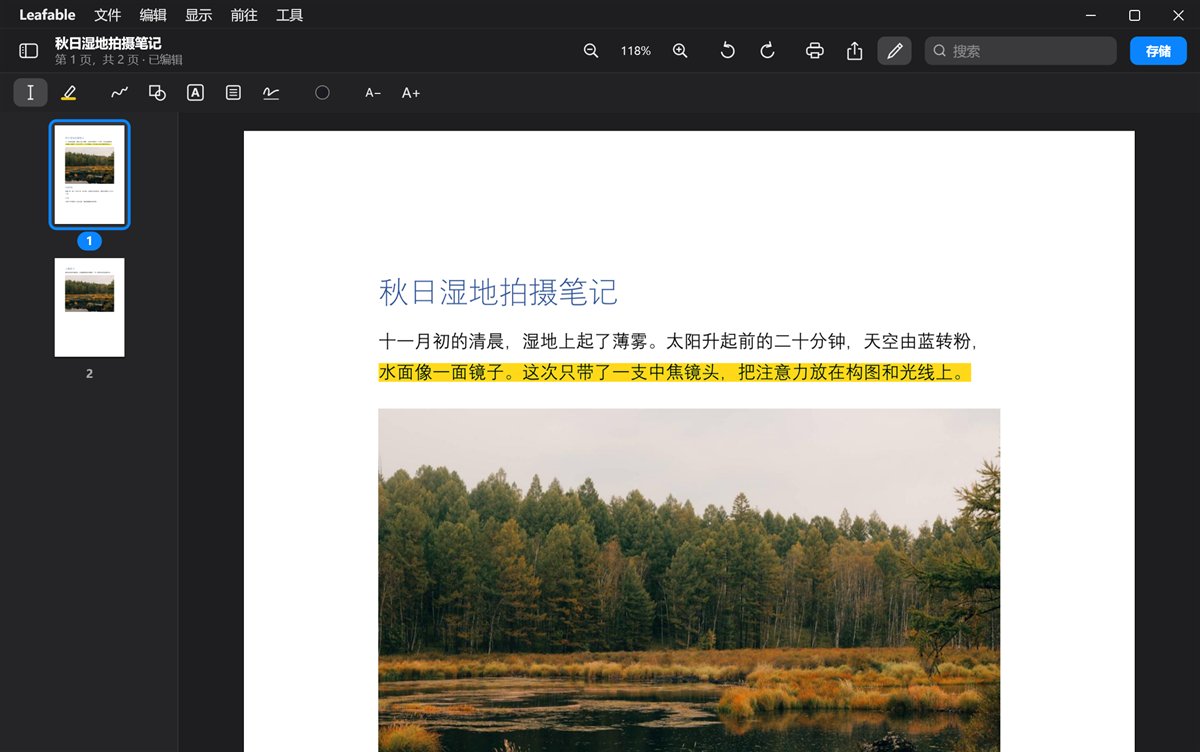
Leafable showing a PDF of photography notes with photos: page thumbnails on the left, the markup toolbar at the top and a highlighted sentence in the page
Leafable as it really looks. Photos by the author.

Why I made it

Preview, for Windows.

On a Mac, Preview lets you read PDFs, combine files and sign them without installing anything. On Windows, doing the same usually means uploading files to a conversion website, paying for a subscription or putting up with ads and pop-ups.

So I built Leafable after Preview: the layout and the way things work follow it as closely as possible, so Mac users feel at home and everyone else can pick it up at a glance. Everything happens on your own computer; your files never pass through a server.

Pages

Combine, reorder and delete by dragging.

Drag a few PDFs or photos into the thumbnail sidebar to combine them; they go exactly where you let go. Drag thumbnails to reorder, press Delete to remove pages and Ctrl+Z to undo. Drag a page to the desktop to save it as its own PDF.

Split, extract pages, compress, or export as images or one long image from the Share button in the toolbar. You can also print two or four pages on one A4 sheet, trim white margins automatically and remove blank pages from scans.

Markup

Highlight, annotate, sign.

The markup toolbar works like Preview’s: highlight, text, pen, arrow, rectangle, oval and notes. Write your signature with the mouse, or import a photo of one written on white paper; the background is removed and the signature is kept for next time.

Markup is saved as standard PDF annotations, so other apps show it the same way, and when you open the file in Leafable again you can still move, change or delete it.

Forms

Fill in PDFs directly.

Click text fields, checkboxes, radio buttons and drop-downs in a PDF form to fill them in, Chinese included. Saved forms can still be edited later.

A few everyday helpers are included too: place both sides of an ID card at actual size on one A4 page ready to print, add a watermark to copies, add page numbers and insert blank pages.

Text and conversion

Search and copy text in scans.

Scans and photos have no text layer, so Leafable uses the text recognition built into Windows to read them. You can then select, copy and search the text, all offline. When saving, the recognized text can be written into the PDF so other apps can search it too.

Convert PDFs to Word or Excel, with text in reading order and tables kept in rows and cells. If Office or WPS is installed, you can also drag in Word, Excel and PowerPoint files to turn them into PDFs.

Privacy

Passwords and redaction, all on your computer.

Add a password to open a PDF, or remove an existing one. Before sending a file with phone or ID numbers, redact them: when you save, the content under the box is actually removed, not just covered with black, so no app can find it.

Document Info shows a file’s author, creating app and dates, and can remove them before you share it.

Tabs

Several files, one window.

Opening another file adds a tab to the same window. Switch with Ctrl+Tab, or move a tab into its own window from the View menu.

Reading

Find, contents, bookmarks.

Every match is marked when you search. The PDF’s own table of contents appears in the sidebar, and you can add your own bookmarks. At night, switch to night mode, or have the page read aloud.

Quiet

No ads, no interruptions.

No sign-up and no notifications; your files are processed only on your computer. New versions download in the background and install when you close the app.

Language

Chinese and English.

The interface follows the Windows display language: Chinese on Chinese systems, English everywhere else.

Requirements and installation

  • Windows 10 or Windows 11
  • Installs for the current user only; no administrator rights needed
  • Installer about 10.6 MB
  • Can be set as the default PDF app; Windows asks you to confirm in a pop-up window
  • Opening Word, Excel and PowerPoint files needs Microsoft Office or WPS installed
  • To uninstall: Settings → Apps → Installed apps → Leafable

Seeing “Windows protected your PC” on first install?

Click “More info”, then “Run anyway”. Windows shows this for new programs without a paid signature. Installation needs no account and bundles nothing else.

Guides in Chinese

Buy me a coffee

Thank you. Support is entirely optional and changes nothing in the apps.

In WeChat, press and hold the code to scan it. In other browsers, save the image and scan it with WeChat.