How to get photos from a camera memory card onto your computer
The simplest way: put the card in your computer's card reader, open the DCIM folder on it, and copy the photos into Pictures. Once you shoot a lot and reuse the same card, an import tool that sorts by date and skips what you already imported saves you picking files by hand every time.
Without extra software: copy in File Explorer
- Put the memory card in your computer's card reader.
- Open This PC and open the new drive that appeared. It is usually named after the camera brand (such as LUMIX or NIKON) or called USB Drive.
- Open the DCIM folder on it. The photos are in the numbered folders inside DCIM, such as 100_PANA on Panasonic or 101ND810 on Nikon.
- Create a new folder in Pictures, name it after the date or place, then select the photos and copy them over.
If you don't shoot much and import after every outing, this is enough. The trouble starts the second time. The card still holds the photos you copied last time, so you have to remember which ones are already on your computer. A card used over several days has to be split by date by hand. And photos you renamed in an earlier backup end up on your computer twice when you copy them again.
Import with Lightable: sorted by date, already-imported photos skipped
- Download and install Lightable. It is free and runs on Windows 10 and 11.
- Open Lightable and click Import in the sidebar. If you insert a memory card while Lightable is open, it also switches to the library and opens the import window by itself.
- The card with a DCIM folder is picked as the source automatically. Import To defaults to Pictures. You can change it, and Lightable remembers your choice.
- The window shows “Checking the photos (22 of 85). You can click Import now.” You don't have to wait: click Import, and copying starts as soon as the check finishes.
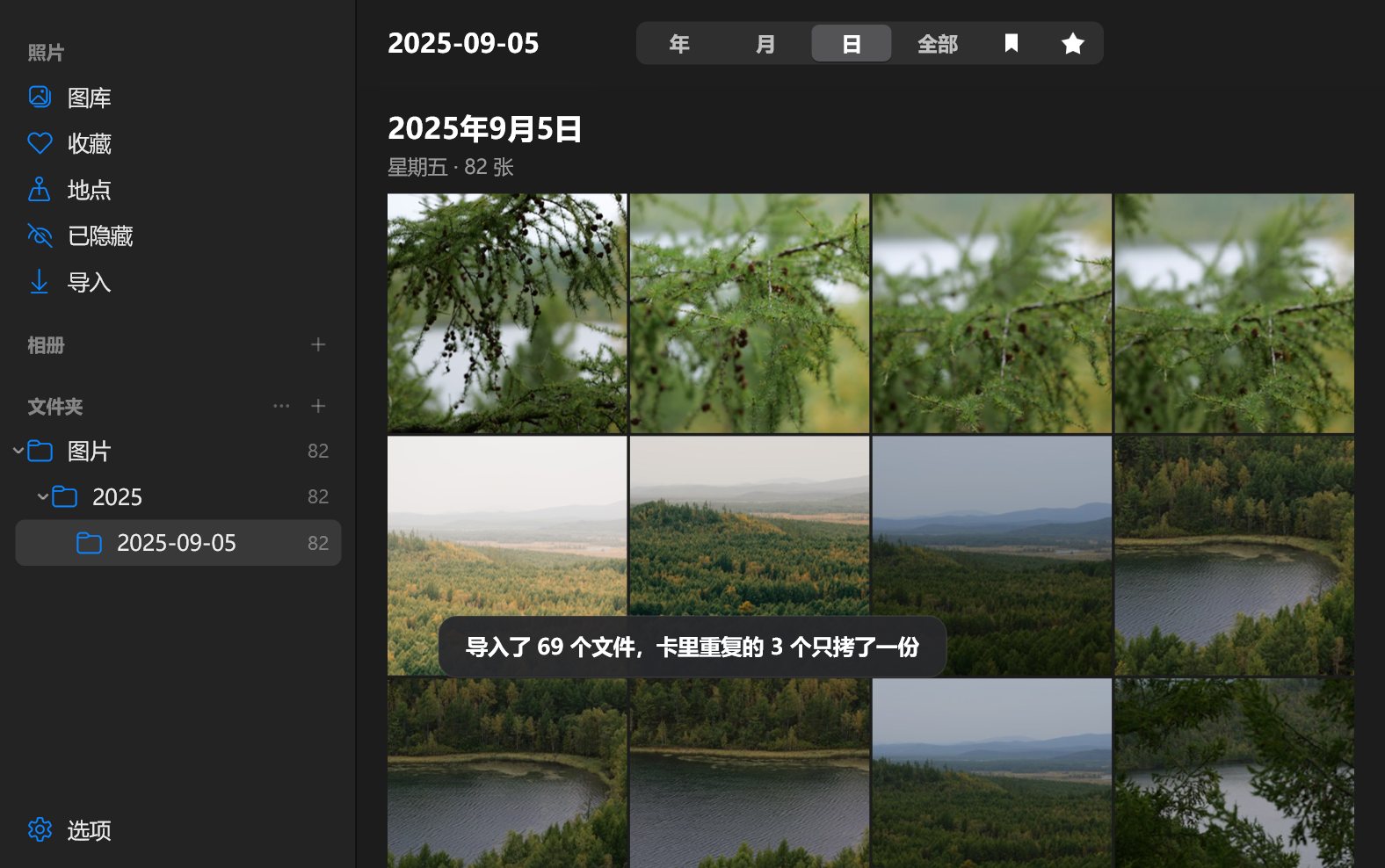
- While copying, Windows shows its own copy progress window. When it is done, the library opens the folder for the most recent day.
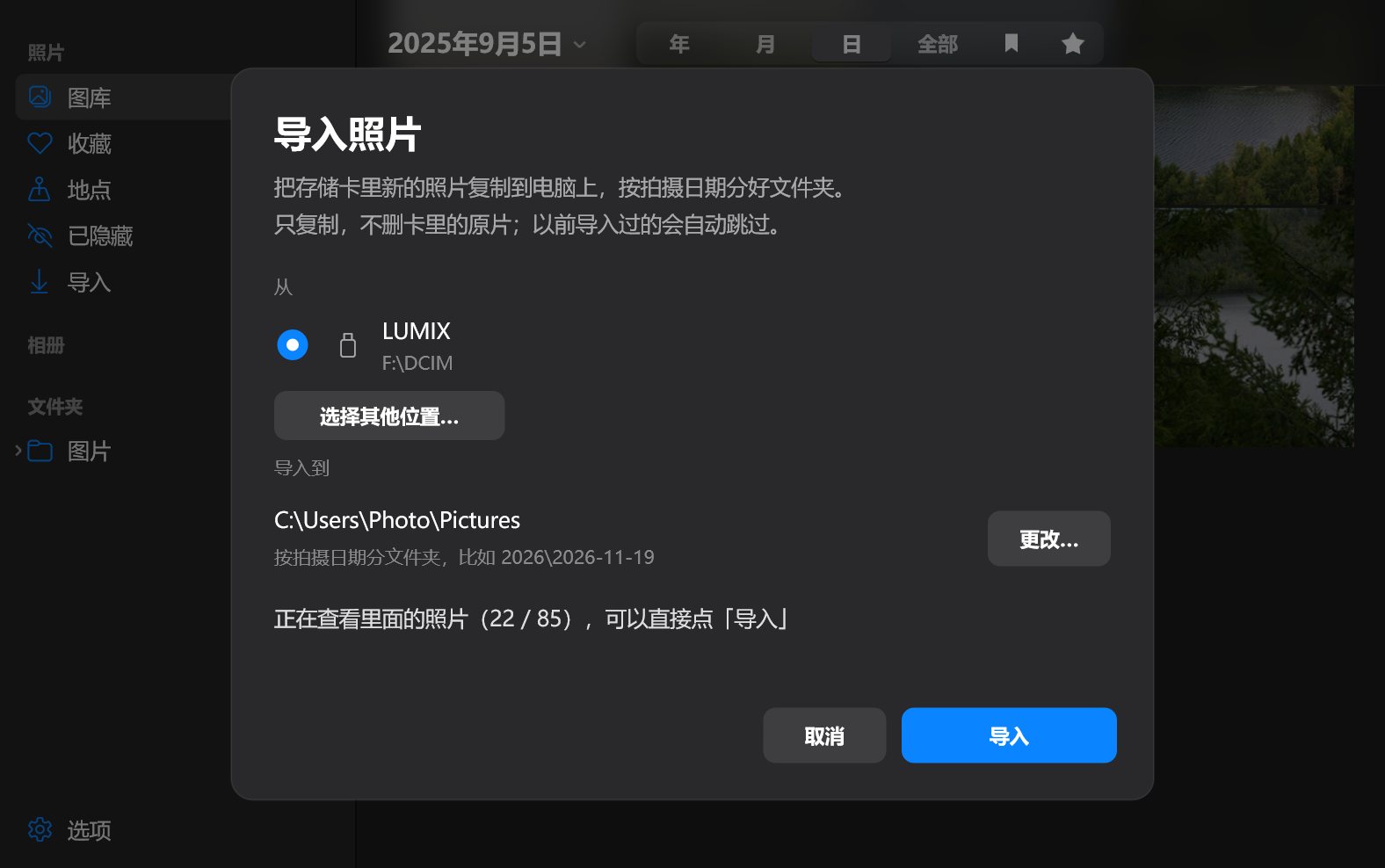
Imported photos go into two levels of folders by capture date, year\year-month-day. A card used on two days ends up like this:
- Pictures\2025\2025-09-05\P1015600.JPG …
- Pictures\2025\2025-09-09\P1036994.JPG …
Which photos are not copied again
- Photos you imported before. Lightable remembers every photo it has imported. Even if you later deleted one on your computer as a reject, it won't come back the next time you insert the card.
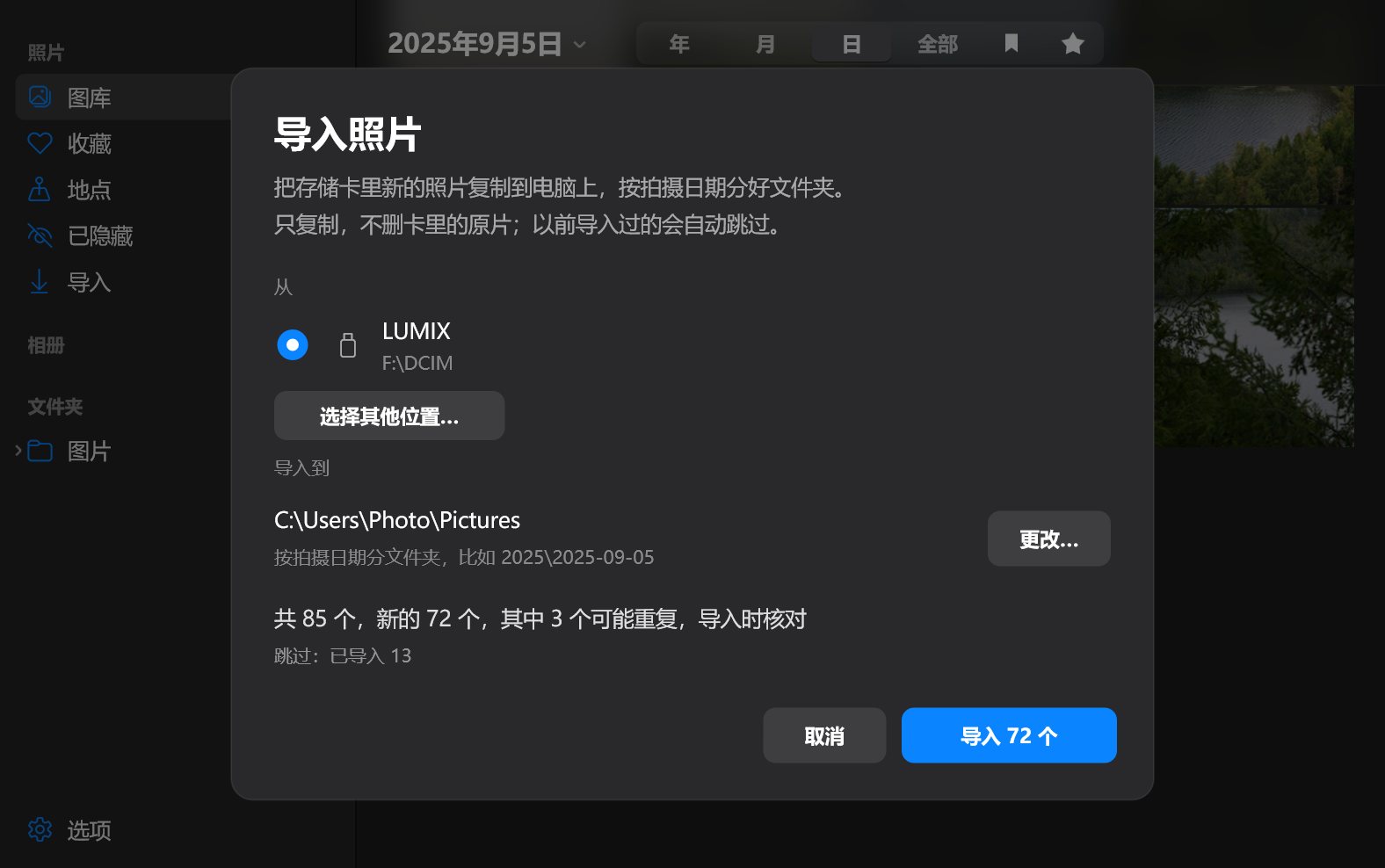
- Photos already on your computer. If the library or the target folder already holds an identical photo, Lightable recognizes it, even if it was renamed or sits in another folder. We tried 20 photos that had been renamed and put in an “old backup” folder, and all 20 were recognized. Photos on the card are only compared one by one during copying, so the window first says “N may already be on this PC and will be checked during import”.
- Duplicates on the card itself. If the card holds two copies of the same photo, only one is imported, under the name the camera gave it.
After the check, the window shows “N already imported”: photos imported before or already on your computer, which won't be copied. If the card stores the same photo twice, the window first says “N may be duplicates and will be checked during import”. Each one is compared before copying, true duplicates are copied only once, and the message at the end says so. Photos with the same name but different content (for example, two cameras that both produced P1000001.JPG) are renamed automatically so neither overwrites the other. Videos on the card are copied too.
Open import whenever you insert a card
- Easiest: after your first import from a memory card, Lightable asks “Use Lightable to import whenever a memory card is inserted?” Click OK.
- Later: click Options at the bottom left of the library, then Make Default for Memory Cards.
After that, Windows opens Lightable's import when you insert a card, even if Lightable isn't running. If Lightable is open but you are editing a photo or watching a slideshow, inserting a card only shows a short notice and doesn't interrupt you.
Common snags
- Nothing happens when you insert the card: check whether a new drive appeared in This PC. If not, try another USB port, or take the card out and put it back. Dirty metal contacts on the card reader can also stop it from reading.
- The card isn't listed as a source: Lightable only picks drives with a DCIM folder. If the card was formatted in another device or the photos are in a different folder, choose that folder as the source.
- No card reader: you can also import with the camera's USB cable, and “Camera or phone connected by USB” appears as a source. But every photo has to come through the camera, which is much slower than a card reader. If you shoot a lot, a card reader is worth buying.
How long it takes
Lightable first checks what is on the card, then copies. Copying time depends mostly on the card reader and the card. The check is quick: on an old card used for years, whose file system already had errors, 1,355 files took about 11 seconds, most of it spent by the card itself listing its files. A healthy card is faster.
Measured on one desktop PC (i7-13700K, 32 GB RAM).
What it can't do
- It won't clear or format the memory card for you.
- The folder layout is fixed at year\year-month-day and can't be changed to another naming scheme.
Common questions
Are the photos still on the card after importing?
Yes. Lightable only copies and never touches the originals on the card. Once you have checked that everything is on your computer, clear the card with the camera's Format option. That is safer than deleting files from the computer.
What date are the photos sorted by?
The capture time recorded in each photo, not the time it was copied. So set your camera's clock correctly. If you travel abroad and forget to change the time zone, the date can be off by a day.
Can I import phone photos this way?
This guide is about camera memory cards. Phone photos can go to your computer over Wi-Fi without a cable; see how to send phone photos to your PC without a cable or sign-in (in Chinese).
To browse and pick the imported photos quickly, see how to open and quickly browse RAW photos on Windows. If your camera shoots RAW and JPG together, see how to manage RAW+JPG pairs on your computer.