Shooting RAW+JPG: how to manage the pairs on your computer
In RAW+JPG mode, each press of the shutter saves two files with the same name and different extensions. Treat them as one photo on your computer and things stay tidy: you see each picture once, and the two files are deleted and moved together.
Why it gets messy
Open a memory card in File Explorer and P1015662.JPG is followed by P1015662.RW2, so every picture appears twice. Flip through them one by one in a photo viewer and you see the same frame twice. A few hundred shots turn into a thousand files.
You can make it a little better without installing anything. Sort by Name in File Explorer so the two files with the same name sit together and you can select them together. Type *.RW2 in the search box at the top right to list only the RAW files.
Deleting is worse. Delete a picture in the Photos app and only the file you were looking at goes. The other one stays in the folder. Over time the folder fills up with RAWs that have no JPG and JPGs that have no RAW, and you can no longer tell which ones you already went through.
In Lightable, the two files are one photo
First download and install Lightable. It is free and runs on Windows 10 and 11.
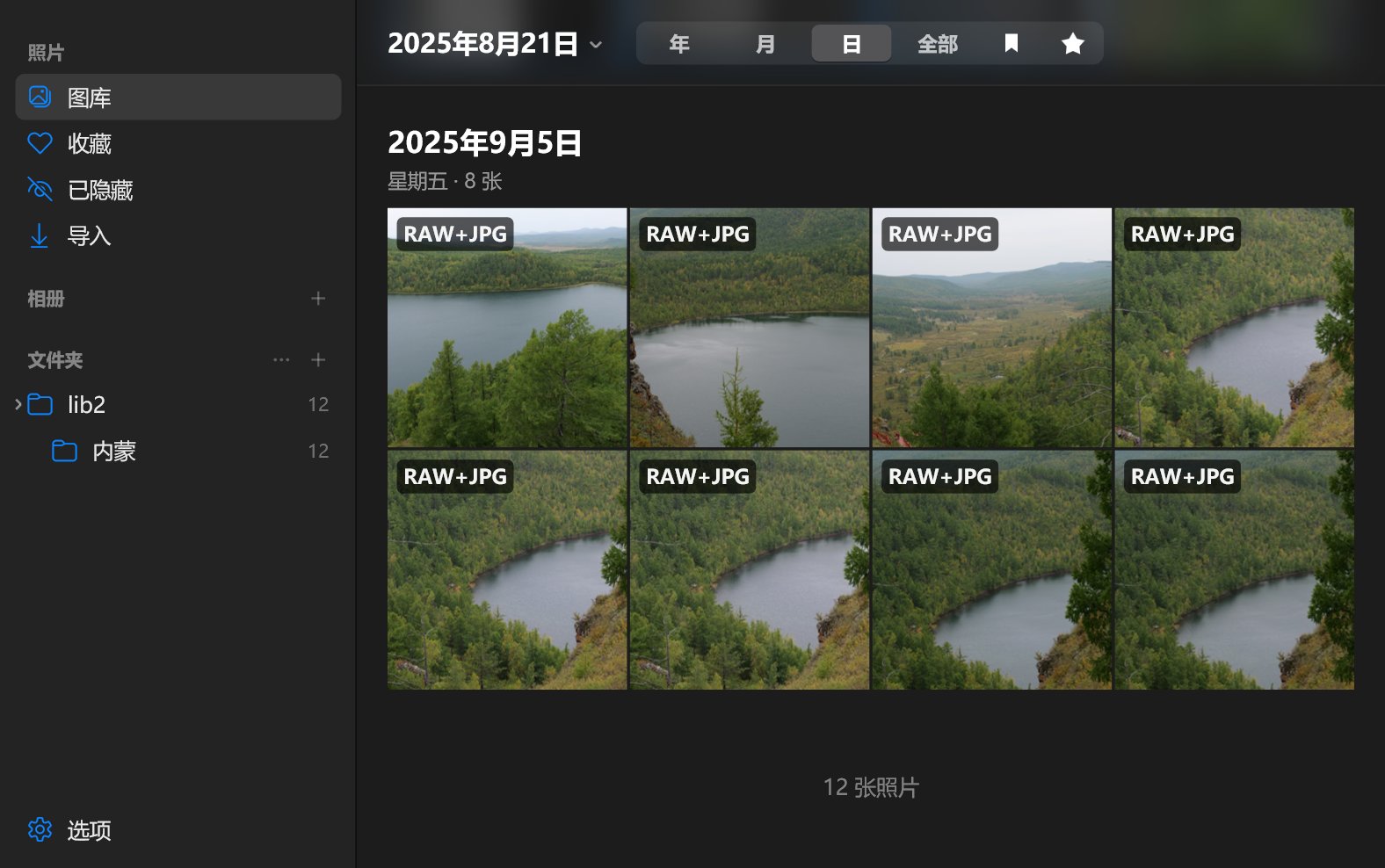
When a RAW and a JPG with the same name are in the same folder, Lightable shows them as one photo and displays the JPG. It opens fast and the colors are what the camera produced. In the library, these photos carry a RAW+JPG badge in the top left corner.
Picking photos
- Double-click any photo in the folder and press → to move through them. Each picture appears only once.
- Press 1–5 to rate the ones you like and X to reject the ones you don't. Ratings and flags go into a small .xmp file next to the RAW, and the photos themselves are not changed.
- When you have been through them all, press Ctrl+Backspace. Lightable asks first, then moves every photo marked X to the Recycle Bin, together with its RAW and .xmp. If you change your mind, Ctrl+Z brings them all back.
Deleting one photo: just the JPG, or both
- Delete removes only the JPG you are looking at and keeps the RAW. Use it when you may still want to edit the shot but don't need the JPG. After that the photo is shown from the RAW, so it looks as if it is still there.
- Shift+Delete removes the JPG and the RAW with the same name.
Both go to the Recycle Bin and can be undone with Ctrl+Z. USB drives, memory cards and network drives have no Recycle Bin, so Lightable asks “Delete Permanently?” first.
Moving and organizing
Select photos in the library and drop them on a folder in the sidebar to move them. Hold Ctrl as you let go to copy instead. You can also right-click a photo and choose Move To.
When you move a photo, the RAW, JPG and .xmp with the same name all go with it, along with its rating, favorite and album records. If the target folder already has a photo with that name, Lightable asks once whether to Replace, Keep Both or Skip. Keep Both renames the whole set, for example to P1015662 (2), so the JPG and RAW names always still match.
If you move photos in File Explorer, remember to select both files yourself.
What it can't do
- It only pairs two files with exactly the same name in the same folder. If a dual-slot camera saves RAW and JPG to different cards, or the files were renamed on import, they show up as two photos.
- When both files are present, it always shows the JPG. You can't switch to the RAW's image.
Common questions
Can I keep only the JPG and delete the RAW?
Yes. You only need the RAW if you want to adjust the colors yourself or recover detail in over- or underexposed areas. If you are sure you won't edit a shot again, keeping only the JPG saves most of the space. On a Panasonic S5 II, one RAW is about 30 MB and the matching JPG is only 7–10 MB (measured on a few shots from the same card).
Which file holds the star rating?
Lightable writes ratings and flags to a .xmp file with the same name next to the RAW (for example P1015662.xmp). Many photo apps look for ratings there, so they stay with the RAW if you open it in other software later. When you open the JPG on its own, other apps usually can't see them.
Related guides
If your photos are still on the memory card, see how to get photos from a camera card onto your computer. For opening RAW files and why they can be slow, see how to open and quickly browse RAW photos on Windows.