How to open and quickly browse RAW photos on Windows
If Windows won't open RAW files, it is most likely missing Microsoft's free Raw Image Extension, which you can install from the Microsoft Store. If they open but browsing is slow, it is because every file is being fully decoded. A viewer that reads the embedded preview shows each RAW clearly in under half a second.
First, let Windows read RAW
RAW is the raw data recorded by the camera's sensor, and every camera maker uses its own format: NEF for Nikon, ARW for Sony, RW2 for Panasonic, RAF for Fujifilm, CR2 and CR3 for Canon. Windows needs a decoder to read them. Some computers have it installed and some don't.
- Open the Microsoft Store and search for Raw Image Extension. The publisher is Microsoft, and it is free.
- If the page shows Get, click it to install. If it is already installed, check the Store for updates: RAW files from newer cameras need a recent version.
- Go back to File Explorer. Folders with RAW files should now show thumbnails.
Once it is installed, the Windows Photos app and any viewer that uses the system decoder can open RAW files. Lightable uses this decoder too.
Why it is still slow after that
A 24-megapixel RAW is about 30 MB. Fully decoding it means working out the color of every pixel, which takes nearly a second per photo even on the test machine below. Flip through a few hundred photos with that wait on each one, and it feels sluggish.
Cameras usually store a finished JPG preview inside the RAW file, the same picture you see when reviewing shots on the camera's screen. For flipping through and picking, that preview is enough. The full RAW only needs decoding when you zoom to 100% to check detail. Lightable works this way. Here is what we measured on a desktop PC (i7-13700K, 32 GB RAM, 1600×1000 window) with RW2 files from a Panasonic S5 II:
| Action | Time |
|---|---|
| Double-click an RW2 until a clear image appears | 0.14–0.33 s |
| Press → to go to the next photo | Under 0.02 s |
| Hold an arrow key, 16 photos per second | Keeps up with every photo; about 0.85 s after stopping, the fully decoded version replaces the preview |
How we measured: a program captured the window every 16 ms and noted when the next clear image appeared. Each item was measured 1–3 times. The photos had been read once before; reading them for the first time from a memory card or a spinning hard drive is slower. With a larger window (such as full screen on a 4K display), the embedded preview may not be sharp enough, so you wait for the full decode, about 0.8 s.
Browse a set of RAWs in Lightable
- Download and install Lightable. It is free and runs on Windows 10 and 11. If your photos are still on the memory card, see how to get photos from a camera memory card onto your computer first.
- In File Explorer, double-click the first RAW in the folder. If Lightable isn't your default viewer, right-click and choose Open with → Lightable. If it isn't in the list, click Choose another app and find it there.
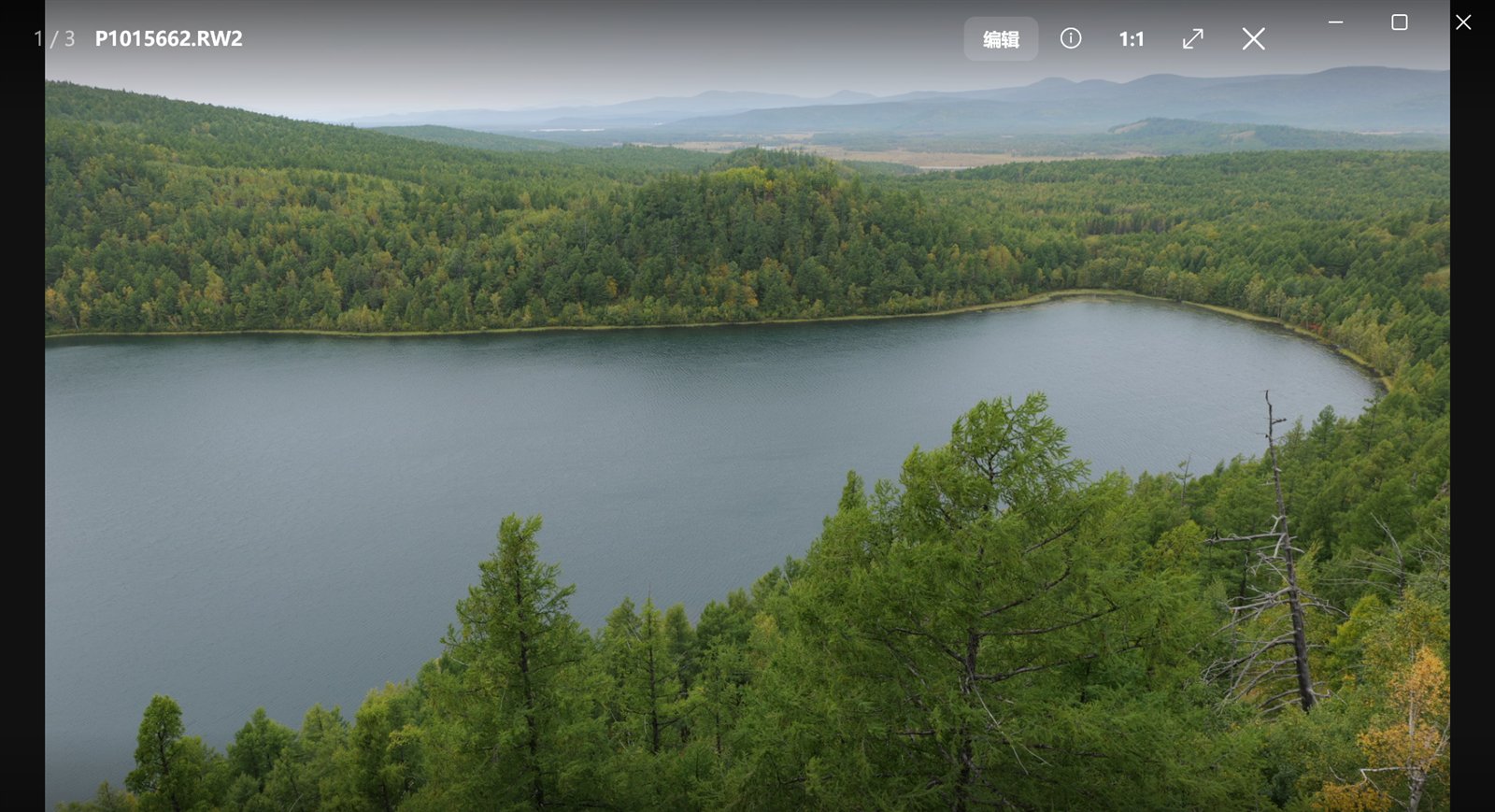
- Press → for the next photo and ← for the previous one. The scroll wheel works too. Move the mouse to the top of the window and the top left corner shows which photo you are on and how many there are.
Zoom in to check sharpness
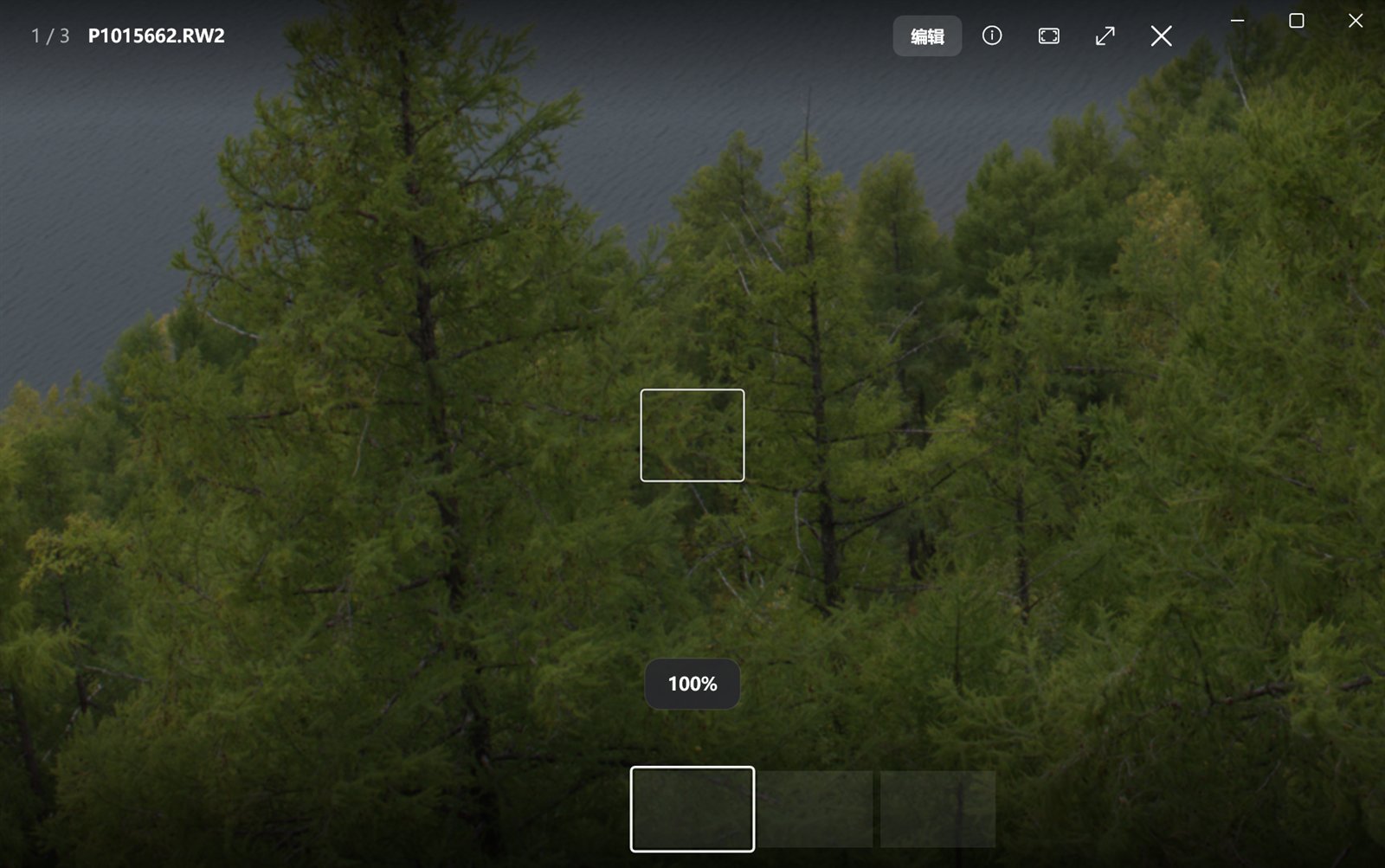
Press Z (or move the mouse to the top and click 1:1 in the toolbar). The photo zooms to 100%, centered on where the camera focused, and a frame flashes briefly there. Press Z again to fit the photo to the screen. For photos taken with manual focus, or with no focus point recorded, it zooms to the center and shows no frame.
Press → while zoomed in, and the next photo also opens at its own focus point. If you shot a burst, comparing them this way one after another shows which is sharpest.
Pick as you go
- 1–5 to rate, 0 to clear the rating.
- X to reject, U to unreject. Rejected photos are dimmed and crossed out in the filmstrip.
- 6–9 for red, yellow, green and blue labels. Press the same label again to remove it.
Ratings and labels go into a small .xmp file with the same name next to the photo, and the RAW itself is not changed. If your camera shoots RAW and JPG together, the two files with the same name show up as one photo, displayed from the JPG. See how to manage RAW+JPG pairs on your computer.
What it can't do
- Lightable uses the Windows RAW decoder. If the extension from the first step isn't installed, or doesn't know your camera yet, Lightable can't open the files either.
- For photos with no readable focus point (manual focus, some Pentax cameras), Z only zooms to the center.
- Some cameras store a small embedded preview, so opening a photo waits for the full decode, close to 1 second.
- On computers with little memory, very large RAWs (such as those from high-resolution multi-shot modes) only show the embedded preview, and zooming to 100% won't decode the full RAW.
Common questions
Will it change my RAW files?
No. Lightable only reads RAW files. Ratings and rejects are stored separately and never written into the RAW file itself.
Will other apps see my star ratings?
Yes. .xmp is a format many photo apps share, and software such as Lightroom reads it when opening the same RAW. When you move photos, take the .xmp with the same name along.
Why doesn't Z jump to the focus point?
When a photo has no focus point recorded, Lightable zooms to the center of the picture and shows no frame. Photos taken with manual focus and some Pentax photos fall into this group.